Laptop Screen Resolution Explained
Last updated: May 2026
Laptop screen resolution refers to the number of pixels that make up the image on your display. Laptop screens are manufactured to different specifications, including physical screen size, such as 11.6", 14.0", 15.6" or 17.3", and also the screen resolution.
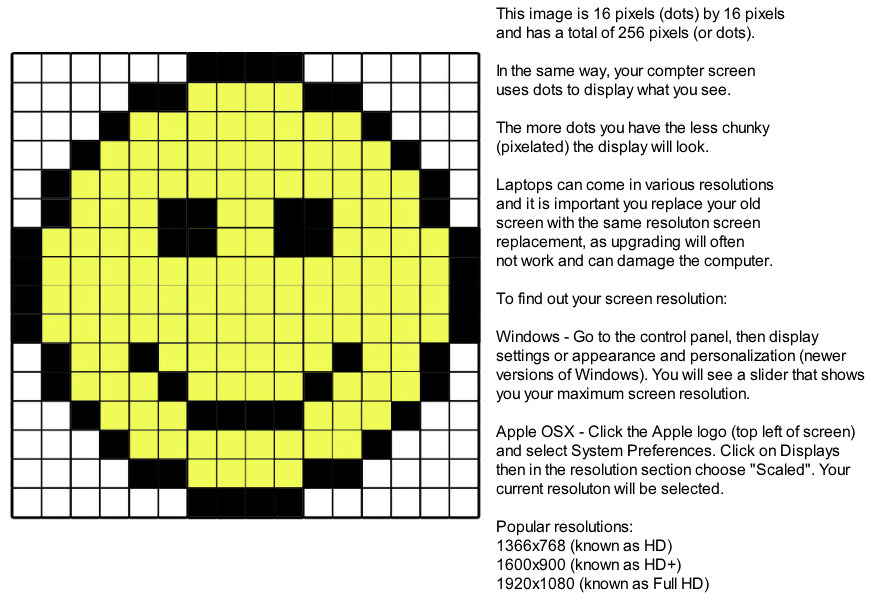
A screen is made up of thousands or millions of tiny dots called pixels. The more pixels a screen has, the sharper and more detailed the image can appear. This is similar to printer quality, where more dots per inch usually means a clearer image. On a laptop display, higher resolution means more detail, sharper text, and more space on the screen.
For example, a 1366x768 HD screen contains just over one million pixels, while a 1920x1080 Full HD screen contains over two million pixels. This is why a Full HD screen normally looks sharper and can display more detail than an HD screen of the same physical size.
How is laptop screen resolution measured?
There are three common ways laptop screen resolution is described:
1. Pixel width x pixel height
The most accurate way to describe a laptop screen resolution is by pixel width multiplied by pixel height. For example, 1366x768 means the screen has 1366 pixels across the width and 768 pixels down the height.
A 1366x768 screen has 768 horizontal lines, each containing 1366 pixels, giving a total pixel count of 1,049,088 pixels. A 1920x1080 screen has 2,073,600 pixels, which is almost twice as many.
2. Resolution name
The LCD industry also uses resolution names. These are short names used to describe common resolutions. For example, 1366x768 is usually called HD, while 1920x1080 is called Full HD or FHD.
Other examples include WXGA, HD+, WUXGA, QHD, WQXGA and UHD. These names are useful, but the exact pixel resolution is always the safest value to check when buying a replacement laptop screen.
3. Shorthand name
You may also see screen resolutions written as shorthand names such as 720p, 768p, 1080p, 1440p or 2160p. These usually refer to the vertical pixel count.
For example, 1080p refers to a 1920x1080 Full HD screen. 2160p usually refers to a 3840x2160 4K UHD screen.
Common laptop screen resolutions
The table below lists common laptop screen resolutions, including older legacy formats and newer high-resolution displays.
| Maximum Resolution |
Common Name |
Widescreen |
Notes |
| 800x480 |
WSVGA |
Yes |
Small legacy netbooks and portable devices |
| 1024x576 |
WSVGA |
Yes |
Older widescreen netbooks |
| 1024x600 |
WSVGA |
Yes |
Common on early netbooks |
| 1024x768 |
XGA |
No |
Older 4:3 laptop screens |
| 1152x768 |
WXGA |
Yes |
Older widescreen laptops |
| 1280x720 |
HD / 720p |
Yes |
Low-resolution widescreen displays |
| 1280x768 |
WXGA |
Yes |
Older widescreen laptops |
| 1280x800 |
WXGA |
Yes |
Older 16:10 widescreen laptops |
| 1366x768 |
HD / 768p |
Yes |
Very common budget laptop resolution |
| 1400x900 |
WXGA+ |
Yes |
Less common older widescreen format |
| 1400x1050 |
SXGA+ |
No |
Older 4:3 business laptops |
| 1440x900 |
WXGA+ |
Yes |
Older 16:10 laptops, including some MacBooks |
| 1600x900 |
HD+ |
Yes |
Older mid-range 15.6" and 17.3" laptops |
| 1680x945 |
HD+ |
Yes |
Uncommon widescreen resolution |
| 1680x1050 |
WSXGA+ |
Yes |
Older high-resolution 16:10 laptops |
| 1920x1080 |
Full HD / FHD / 1080p |
Yes |
One of the most common modern laptop resolutions |
| 1920x1200 |
WUXGA |
Yes |
Common on modern 16:10 business laptops |
| 2160x1440 |
2K / 3:2 |
Yes |
Used on some premium productivity laptops |
| 2240x1400 |
2.2K |
Yes |
Found on some modern Lenovo and business laptops |
| 2256x1504 |
3:2 high resolution |
Yes |
Used on some Surface-style displays |
| 2560x1440 |
QHD / WQHD / 1440p |
Yes |
Common on higher-end laptops and gaming displays |
| 2560x1600 |
WQXGA |
Yes |
Common 16:10 premium laptop resolution |
| 2880x1800 |
2.8K |
Yes |
Used on premium OLED and high-resolution laptops |
| 3000x2000 |
3K / 3:2 |
Yes |
Used on some premium productivity laptops |
| 3200x1800 |
QHD+ / 3K |
Yes |
High-resolution ultrabooks and premium displays |
| 3456x2160 |
3.5K OLED |
Yes |
Used on some premium OLED laptops |
| 3840x2160 |
4K UHD / 2160p |
Yes |
High-end laptops and creative workstations |
| 3840x2400 |
WQUXGA |
Yes |
High-end 16:10 laptop displays |
Understanding your laptop screen resolution
When buying a replacement laptop screen, it is important to match the correct resolution. Some laptop models were sold with more than one screen option. For example, the same laptop model may have been available with HD, Full HD, touchscreen, non-touchscreen, matte, glossy or higher-refresh-rate panels.
With some Dell laptops, the original sales configuration may list the screen resolution. Other manufacturers may include the resolution in the laptop specifications, service manual or original order details. However, the safest method is usually to check the original LCD panel part number printed on the back of the screen.
If you are replacing a laptop screen, do not rely on resolution alone. Two screens can have the same resolution but still be incompatible because of connector type, connector position, touchscreen interface, mounting brackets, firmware or panel thickness.
Can I upgrade my laptop screen resolution?
Sometimes it is possible to upgrade from a lower resolution screen to a higher resolution screen, such as from HD 1366x768 to Full HD 1920x1080. However, this is not always guaranteed.
A resolution upgrade may depend on:
- The screen connector type, such as 30-pin eDP or 40-pin eDP
- The laptop motherboard and graphics support
- The display cable fitted inside the laptop
- Whether the laptop BIOS or firmware supports the panel
- Whether the replacement screen has the correct mounting style
For this reason, we normally recommend matching the original screen specification unless you are certain your laptop supports the upgrade.
HD vs Full HD laptop screens
The most common difference users notice is between HD and Full HD screens.
- HD 1366x768 screens are usually found in budget or older laptops.
- Full HD 1920x1080 screens offer sharper text, clearer images and more usable desktop space.
A Full HD screen has almost twice as many pixels as a 1366x768 HD screen. This makes Full HD a popular choice for work, browsing, streaming, gaming and general everyday use.
WUXGA, QHD, 2.8K and 4K laptop screens
Modern laptops increasingly use higher resolutions than Full HD. Business laptops often use 1920x1200 WUXGA panels, which provide extra vertical space compared with 1920x1080. Premium laptops may use 2560x1600 WQXGA, 2880x1800 2.8K, 3200x1800 QHD+ or 3840x2400 WQUXGA displays.
Higher resolutions can make text and images look extremely sharp, but they can also cost more to replace and may use more battery power. They may also require exact compatibility with your laptop model, cable and firmware.
How to find your original laptop screen resolution
If your original display is still working, you can check the native resolution in your operating system. Make sure no external monitor is connected, otherwise you may be viewing the resolution of the external display rather than the internal laptop screen.
Windows 10 and Windows 11
- Right-click on the desktop.
- Select Display settings.
- Look for Display resolution.
- The recommended resolution is usually the native resolution of the laptop screen.
Older versions of Windows
On older versions of Windows, open the Control Panel display settings and move the resolution slider to the highest available value. This usually shows the maximum native resolution of the internal laptop display.

macOS
On macOS, open System Settings or System Preferences, then choose Displays. The available scaled resolutions will depend on the screen fitted to the MacBook or external display.
Linux
On most Linux desktop environments, screen resolution can be checked in the display settings panel. You can also use display tools such as xrandr, depending on the distribution.
Resolution is only one part of screen compatibility
When choosing a replacement laptop screen, resolution is important, but it is only one part of compatibility. You should also check:
- Screen size — for example 13.3", 14.0", 15.6" or 17.3"
- Connector type — such as LVDS, 30-pin eDP or 40-pin eDP
- Connector position — left, right or centre position on the back of the panel
- Touchscreen support — touch and non-touch screens are not always interchangeable
- Mounting brackets — some panels have top and bottom brackets, side brackets or no brackets
- Finish — matte and glossy screens may both exist for the same model
- Refresh rate — 60Hz, 120Hz, 144Hz, 165Hz and higher gaming panels may not be interchangeable
Even if two laptop screens have the same size and resolution, they may still not fit or work correctly if the connector, bracket style, firmware or touch interface is different.
How to choose the correct replacement laptop screen
The safest way to choose the correct replacement screen is to use your laptop model number or the LCD panel part number printed on the back of your original screen. The panel part number is normally the most accurate way to identify a compatible replacement.
If you are unsure which resolution you need, search using your exact laptop model number or original LCD screen code. You can also use the screen size, resolution, connector type and other filter options on our product pages to narrow down compatible screens.
More Help:
For help identifying your screen, see our guide:
How to identify your laptop screen model.
For help measuring screen size, see:
How to measure a laptop or tablet screen.
For any other kind of help please visit our help centre.

